# Push Notifications | OneSignal integration)

## 🎯 Why use Push Notifications

Push notifications are small, pop-up messages sent to users' devices from your mobile app, and can be viewed from the device lock screen when an app isn't currently in use.

What's special about push notifications is that they are designed to capture users' attention in real-time, and often trigger immediate engagement. Therefore, they can be used to convey reminders, updates, promotions, and more.

***

## ⚙️ How to set up

### **1. Set up your OneSignal account**

#### **1.1. Create your app in your OneSignal account**

Our push notifications are powered by OneSignal, so you'll need to have a OneSignal account first to use this feature. Don't have one? Don't worry, you can [create a free OneSignal account](https://dashboard.onesignal.com/signup) for an UNLIMITED number of push notifications!

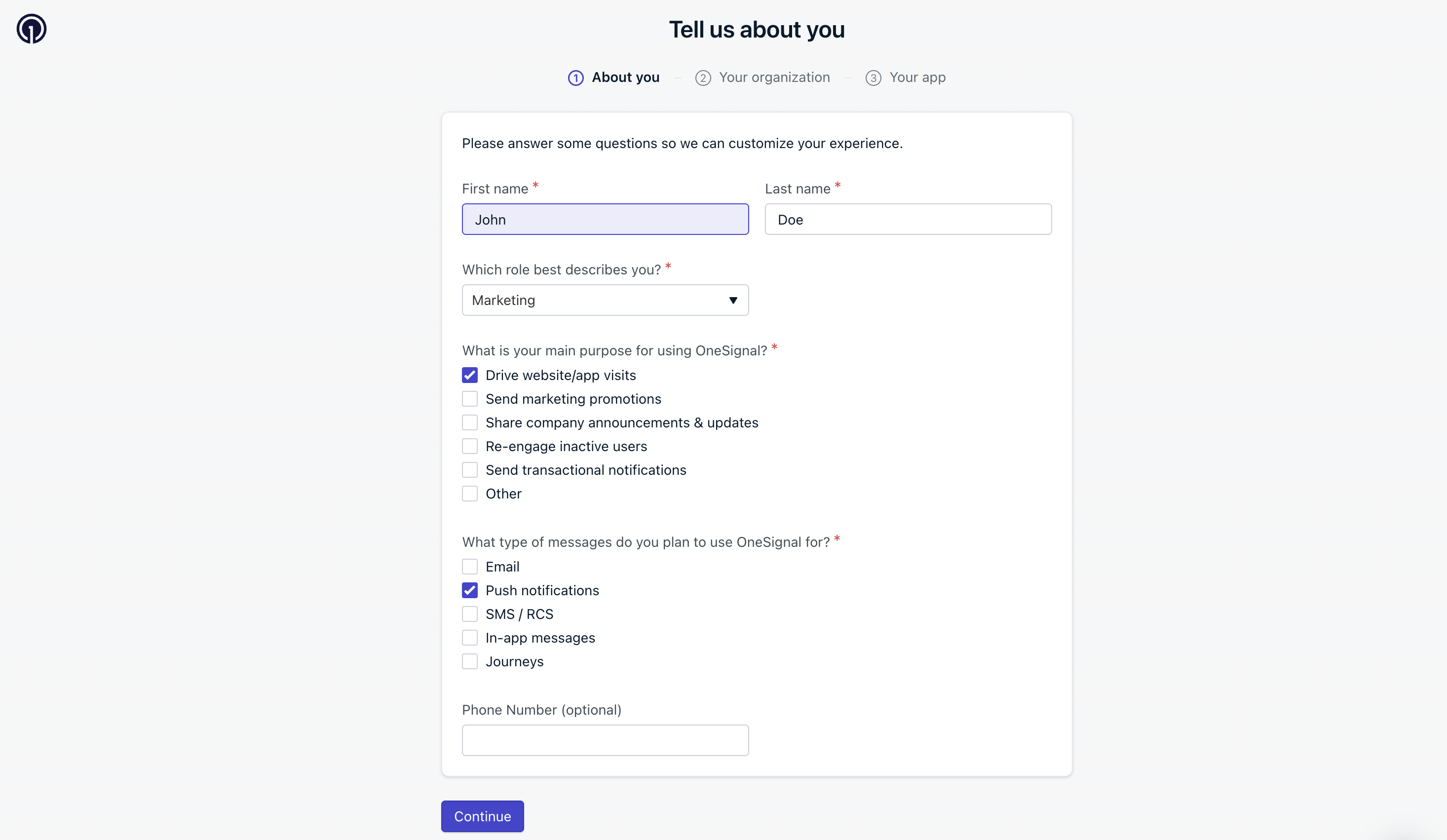
<figure><img src="https://4116947012-files.gitbook.io/~/files/v0/b/gitbook-x-prod.appspot.com/o/spaces%2FZvOReVnJPMF91ppETQNN%2Fuploads%2Fgit-blob-d5223dc3299a440b307dd489daee237456f4e0e3%2FScreenshot%202026-01-09%20at%2013.47.04.png?alt=media" alt=""><figcaption><p>Provide your needs information</p></figcaption></figure>

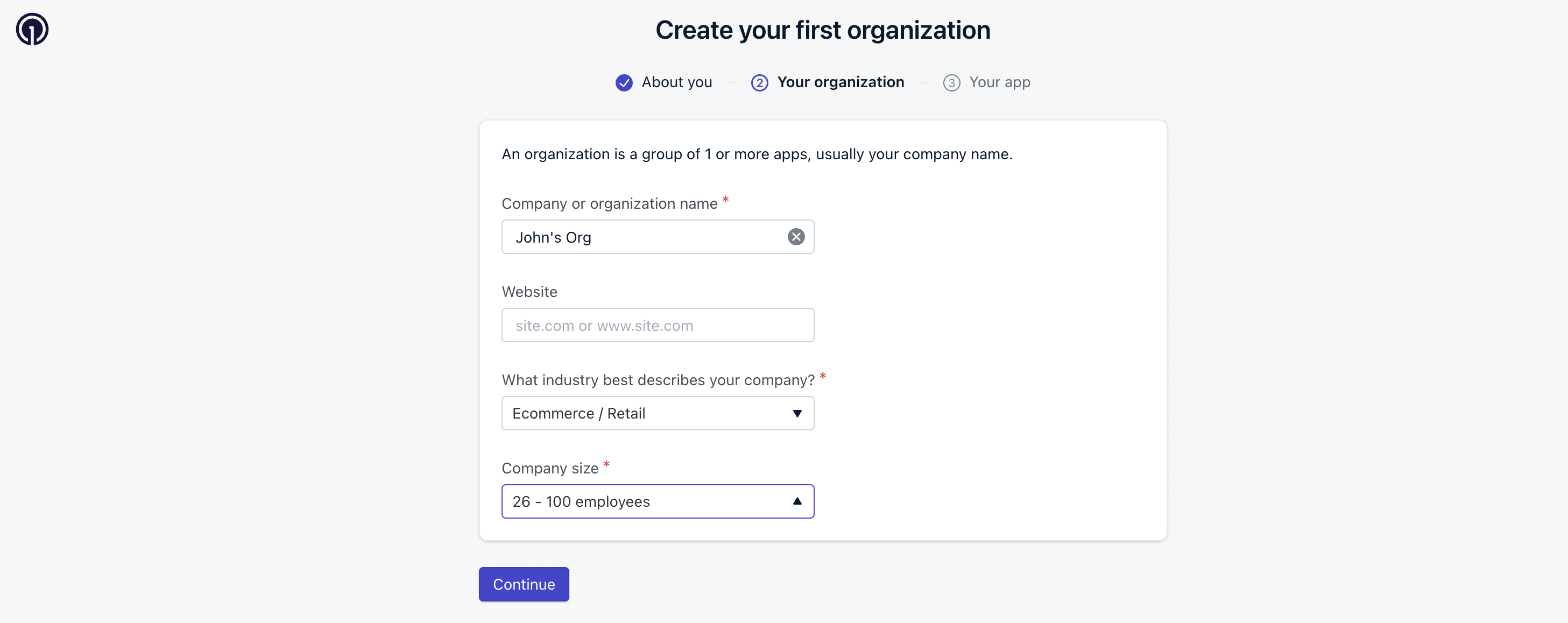
<figure><img src="https://4116947012-files.gitbook.io/~/files/v0/b/gitbook-x-prod.appspot.com/o/spaces%2FZvOReVnJPMF91ppETQNN%2Fuploads%2Fgit-blob-48938b3c741e19dbaa72c9dda65c238deb6d079a%2FScreenshot%202026-01-09%20at%2013.48.03.png?alt=media" alt=""><figcaption><p>Provide your business information</p></figcaption></figure>

<figure><img src="https://4116947012-files.gitbook.io/~/files/v0/b/gitbook-x-prod.appspot.com/o/spaces%2FZvOReVnJPMF91ppETQNN%2Fuploads%2Fgit-blob-8a04f9a2cadfe4b6b172fca8388a5585a8f3419c%2FScreenshot%202026-01-09%20at%2013.49.23.png?alt=media" alt=""><figcaption><p>Create your app on the spot</p></figcaption></figure>

You have now successfully created your first app with OneSignal!

#### 1.2. Share your OneSignal account with SimiCart

As you're directed to your app's dashboard, click **Settings** on the left navigation menu to proceed to the next step.

<figure><img src="https://4116947012-files.gitbook.io/~/files/v0/b/gitbook-x-prod.appspot.com/o/spaces%2FZvOReVnJPMF91ppETQNN%2Fuploads%2Fgit-blob-28e9852352cfb00fb9997e478aa490fd31f036ff%2Fimage%20(8).png?alt=media" alt=""><figcaption></figcaption></figure>

For us to assist you with platform configurations, we'll need your account access. In **Settings** section, please navigate to **Team Members** > **Invite to App,** then add <help@simicart.com> in **Admin** role.

<figure><img src="https://4116947012-files.gitbook.io/~/files/v0/b/gitbook-x-prod.appspot.com/o/spaces%2FZvOReVnJPMF91ppETQNN%2Fuploads%2Fgit-blob-8724631623f747fb29fc9518493bf3512768bac8%2Fimage%20(12).png?alt=media" alt=""><figcaption><p>Click on <strong>Team Members</strong> on <strong>Settings</strong> page.</p></figcaption></figure>

<figure><img src="https://4116947012-files.gitbook.io/~/files/v0/b/gitbook-x-prod.appspot.com/o/spaces%2FZvOReVnJPMF91ppETQNN%2Fuploads%2Fgit-blob-5a170941e4c1650afc2673925eebcdfff83bdd34%2Fimage%20(10).png?alt=media" alt=""><figcaption><p>Click <strong>Invite to App</strong> on <strong>Team Members</strong> page.</p></figcaption></figure>

<figure><img src="https://4116947012-files.gitbook.io/~/files/v0/b/gitbook-x-prod.appspot.com/o/spaces%2FZvOReVnJPMF91ppETQNN%2Fuploads%2Fgit-blob-621244d8b5cf94dffb5fa049aa95947ca2140d8e%2Fimage%20(9).png?alt=media" alt=""><figcaption><p>Fill in our email, help@simicart.com &#x26; set the role to <strong>Admin.</strong> Click <strong>Invite</strong> and done!</p></figcaption></figure>

#### 1.3. Get the OneSignal App ID

Now, to get your account connected to SimiCart, from the app's **Settings** page, please navigate to **Keys & IDs**.

<figure><img src="https://4116947012-files.gitbook.io/~/files/v0/b/gitbook-x-prod.appspot.com/o/spaces%2FZvOReVnJPMF91ppETQNN%2Fuploads%2Fgit-blob-4dce132a8f8af688c48566363015fa0b7d00bfb7%2Fimage%20(13).png?alt=media" alt=""><figcaption><p>Click <strong>Keys &#x26; IDs</strong> on <strong>Settings</strong> page.</p></figcaption></figure>

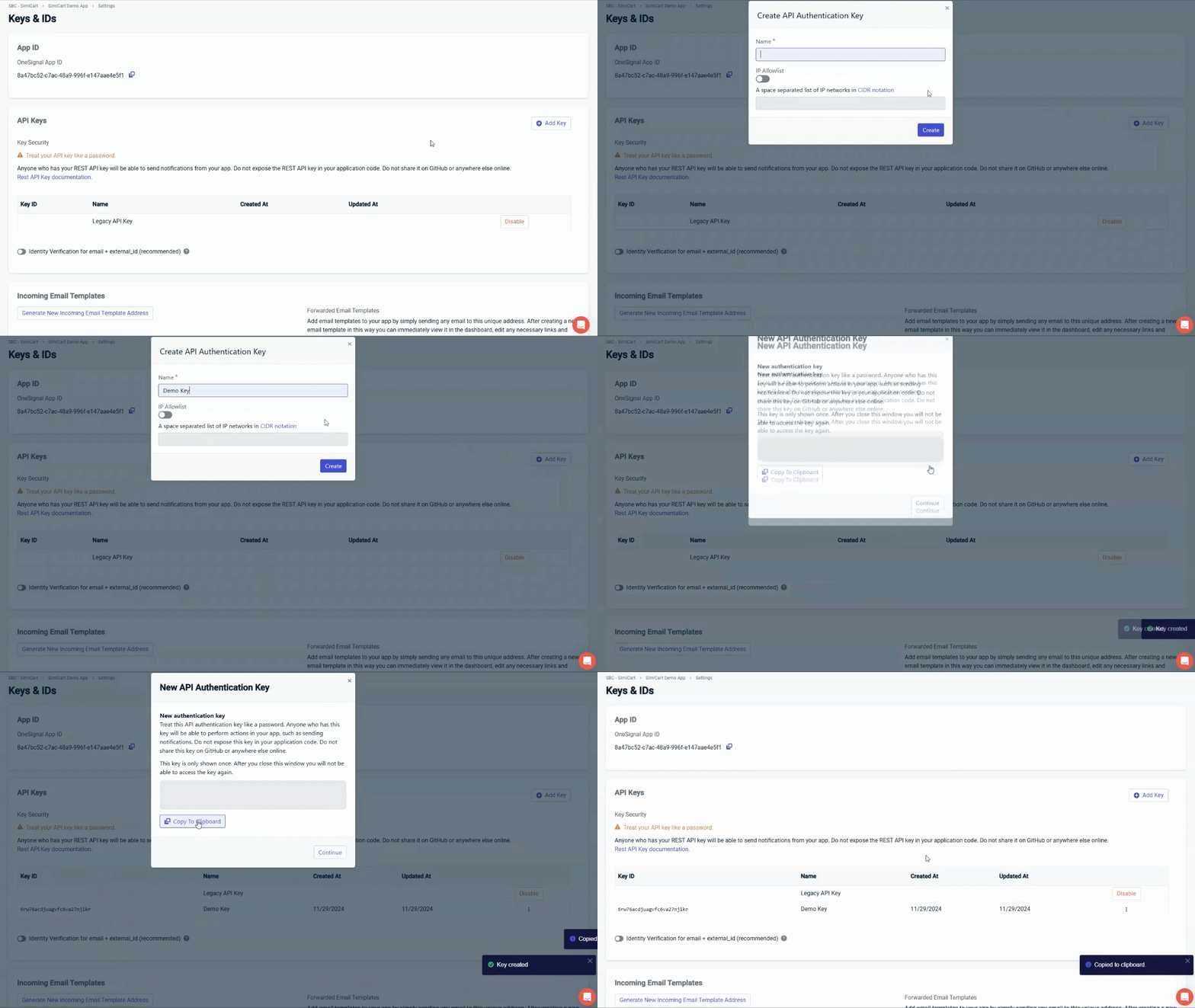
You'll need both **OneSignal App ID** & **REST API Key** (**API Authentication Key**) for the next step.

<figure><img src="https://4116947012-files.gitbook.io/~/files/v0/b/gitbook-x-prod.appspot.com/o/spaces%2FZvOReVnJPMF91ppETQNN%2Fuploads%2Fgit-blob-8b52e95f92df267f70838e87f4d59955fe7a5a74%2Fimage%20(233).png?alt=media" alt=""><figcaption><p>In the <strong>App ID</strong> section of <strong>Key &#x26; IDs</strong> page, find &#x26; copy <strong>OneSignal App ID.</strong></p></figcaption></figure>

<figure><img src="https://4116947012-files.gitbook.io/~/files/v0/b/gitbook-x-prod.appspot.com/o/spaces%2FZvOReVnJPMF91ppETQNN%2Fuploads%2Fgit-blob-1cfe3313cc48a87bda415e2e28429035e2a1c145%2FUntitled.gif?alt=media" alt=""><figcaption><p>In the <strong>API keys</strong> section of <strong>Key &#x26; IDs</strong> page, add &#x26; copy your <strong>REST API Key</strong> (<strong>API Authentication Key</strong>).</p></figcaption></figure>

#### 1.4. Enable the integration between your OneSignal & SimiCart

Now, from SimiCart Mobile App Builder admin dashboard, please navigate to **Push notifications.**

Paste the previously copied **OneSignal App ID** & **REST API Key** into their corresponding fields, then click **Check connection** to validate your OneSignal account's connection to SimiCart.

<figure><img src="https://4116947012-files.gitbook.io/~/files/v0/b/gitbook-x-prod.appspot.com/o/spaces%2FZvOReVnJPMF91ppETQNN%2Fuploads%2Fgit-blob-f59e89ac88b3051f34846f2ee8c87c4481452f23%2Fimage%20(14).png?alt=media" alt=""><figcaption></figcaption></figure>

Now your OneSignal account has been successfully connected to SimiCart!

### 2. Set up Firebase

#### 2.1. Create a Firebase project

First, create a new project with your app name at [Google Firebase](https://console.firebase.google.com/u/0/).

<figure><img src="https://4116947012-files.gitbook.io/~/files/v0/b/gitbook-x-prod.appspot.com/o/spaces%2FZvOReVnJPMF91ppETQNN%2Fuploads%2Fgit-blob-f4208531a4f70df8c6be3563c2739a8d1f3d7465%2Fimage%20(15).png?alt=media" alt=""><figcaption></figcaption></figure>

{% hint style="warning" %}
**Note**: If you have already created a Firebase project before, you don't have to create a new one. Simply request to have us set up the Push notification feature.
{% endhint %}

#### 2.2. Share your Firebase project with SimiCart

After creating the project successfully, please navigate to **Project Overview** > **Users and Permissions**, then add our email, [androidteam@simicart.com](#why-use-sign-in-with-apple-and-google), as Owner.

<figure><img src="https://4116947012-files.gitbook.io/~/files/v0/b/gitbook-x-prod.appspot.com/o/spaces%2FZvOReVnJPMF91ppETQNN%2Fuploads%2Fgit-blob-9f2eb21ee0259992e1b747ce947ab39e4d8a0038%2Fimage%20(343).png?alt=media" alt=""><figcaption></figcaption></figure>

<figure><img src="https://4116947012-files.gitbook.io/~/files/v0/b/gitbook-x-prod.appspot.com/o/spaces%2FZvOReVnJPMF91ppETQNN%2Fuploads%2Fgit-blob-3ad0c4dd152c6a92812932fb032de4a7db111ca7%2Fimage%20(341).png?alt=media" alt=""><figcaption><p>In <strong>Users and permission</strong> page, click <strong>Add member.</strong></p></figcaption></figure>

<figure><img src="https://4116947012-files.gitbook.io/~/files/v0/b/gitbook-x-prod.appspot.com/o/spaces%2FZvOReVnJPMF91ppETQNN%2Fuploads%2Fgit-blob-17b34742a30a7a236b1541ec5928383af4e6ca31%2Fimage%20(342).png?alt=media" alt=""><figcaption><p>Fill in <strong>androidteam@simicart.com</strong> and set the role to <strong>Owner</strong>. Click <strong>Add member</strong> to confirm.</p></figcaption></figure>

Now you've done all the necessary steps to get your push notifications up and going. Leave the rest to us!

***

## 🔔 How to manage

After the push notifications feature has been integrated into your app, it's time to create and send your first push notifications!

To start creating a new push notification, please click "Create new" button on our **Push notifications** page. The locations might vary based on whether you have already created a push notification or not.

<figure><img src="https://4116947012-files.gitbook.io/~/files/v0/b/gitbook-x-prod.appspot.com/o/spaces%2FZvOReVnJPMF91ppETQNN%2Fuploads%2Fgit-blob-cf7d9fc63db4c6be1d2b28393fed6bc66f1113a8%2Fimage%20(248).png?alt=media" alt=""><figcaption><p>Click "Create new" to create a new push notification</p></figcaption></figure>

You will then be redirected to our **New Push Notification** page, where you can set up the following information for your push notifications:

* **Title:** The top-most text of your notification. Optional, but highly recommended to grab your user's attention.
* **Message:** Main content of your notification. Required.
* **Message name:** A name to internally identify your message among other messages you've sent. If left blank, value filled in ‘Message’ field will be used as the name of this message.
* **Image:** An optional large image to illustrate your notification contents. The recommended image format is a jpg filetype with 2:1 aspect ratio landscape.
* **Launch destination:** A destination that your notification redirects users to upon being clicked. You can choose to redirect to a product page, a product listing page (collection page) or a Web URL. If left blank, this message will automatically launch the app homepage upon click.
* **Delivery schedule:** You can schedule a message up to 30 days in advance. The timezone in which the message will be sent is based on your operating system's time.

  Select **Specific time** to set when the notifications should start sending.

<figure><img src="https://4116947012-files.gitbook.io/~/files/v0/b/gitbook-x-prod.appspot.com/o/spaces%2FZvOReVnJPMF91ppETQNN%2Fuploads%2Fgit-blob-e06c042cbe99d3245715fdec0f0f6ae3dc46fe5a%2Fimage%20(251).png?alt=media" alt=""><figcaption><p>Click <strong>Save</strong> to send or schedule your push notification.</p></figcaption></figure>

After clicking **Save** to send or schedule your push notification, you'll be redirected back to the **Push notifications** dashboard, where you can see and manage all of your created notifications.

On the upper right of the page, you will see two buttons: **View global report** & **Create new**.

If you want to create another push notification, click **Create now.**

If you want to check high-level reporting on the overall performance of your push notifications campaign, click **View global report.** For more details regarding the report, please refer to this [article](https://documentation.onesignal.com/docs/analytics).

<figure><img src="https://4116947012-files.gitbook.io/~/files/v0/b/gitbook-x-prod.appspot.com/o/spaces%2FZvOReVnJPMF91ppETQNN%2Fuploads%2Fgit-blob-0fd4093f956931919d9fddefa37eb06e83724075%2FSDrKn9qW5O%20(1)%20(1).png?alt=media" alt=""><figcaption><p>Click "Create new" to create a new push notification. Or click "View global report" to check the high-level report on the effectiveness of your push notifications strategy.</p></figcaption></figure>

With each push notification, in the **Action** column, you have the option to either **duplicate** the notification settings for a new one to save time, or **view report** on the performance of the chosen push notification.

<figure><img src="https://4116947012-files.gitbook.io/~/files/v0/b/gitbook-x-prod.appspot.com/o/spaces%2FZvOReVnJPMF91ppETQNN%2Fuploads%2Fgit-blob-821055a299670fb6aade490ed9fddd7460dc68ed%2Fimage%20(252).png?alt=media" alt=""><figcaption><p>In the Action column, choose "Duplicate" or "View report".</p></figcaption></figure>

When viewing report for each push notification, you can check the following statistics:

**Delivered:** The number of messages that were sent from OneSignal to the Push Servers (Google (FCM), Apple (APNS), Huawei (HMS), etc.). This does not necessarily mean the devices have received these notifications.

**Click-Through Rate:** Click-Through-Rate (CTR) is measured by (total clicks/delivered) \* 100%

**Delivery Statistics:** Provides feedback on how the message performed via 5 delivery statuses of your push notifications:

* *Delivered:* As mentioned above.
* *Remaining*: The number of devices that have not received the notification yet. These would be for notifications sent using Timezone optimizations.
* *Unsubscribed*: A failure reason. The number of devices that were unreachable and likely due to being unsubscribed from push notifications. Once a device has been detected as unsubscribed, it will be marked as unsubscribed and future notifications will not be sent to it unless it re-subscribes to notifications again.
* *Failed*: The number of devices that did not get a notification due to an error.

  These errors are typically caused due to one of the following reasons:

  1. Your OneSignal Application Settings are incorrect.
  2. These tokens belong to an app that does not match your OneSignal settings.
  3. Some other backend error occurred.
* *Capped*: The number of notifications that were not sent due to your OneSignal frequency capping settings.

**Message Settings:** Provides basic configuration of your push notifications including title, message, sending time, and launch destination.

<figure><img src="https://4116947012-files.gitbook.io/~/files/v0/b/gitbook-x-prod.appspot.com/o/spaces%2FZvOReVnJPMF91ppETQNN%2Fuploads%2Fgit-blob-1ca4a5d1a3d02cbf63f33842859a229a3312474e%2Fimage%20(249).png?alt=media" alt=""><figcaption></figcaption></figure>

***

#### ✨ Now, are you ready to take your user engagement to the next level with our unlimited push notifications?

Need help during the process? Reach out to the **SimiCart support team** via live chat or our email address at <help@simicart.com>.