> For the complete documentation index, see [llms.txt](https://docs.simicart.com/llms.txt). Markdown versions of documentation pages are available by appending `.md` to page URLs; this page is available as [Markdown](https://docs.simicart.com/features/subscription-and-marketing/klaviyo-email-subscription.md).
# Klaviyo Email Subscription
Collect customer emails in your mobile app and sync them with Klaviyo to send welcome emails, promotions, and marketing campaigns automatically.
## 🎯 Why use Klaviyo Email Subscription
If you use Klaviyo, this feature helps you collect users' emails from the moment they first open the app and automatically store them in the lists in your Klaviyo account.
This means your app becomes not just a sales channel, but also a powerful tool to grow your subscriber list and keep customers engaged with timely, personalized messages that drive repeat purchases and long-term loyalty.
## 📌 Prerequisite
✅ **Before proceeding, make sure:**
* You are on SimiCart Pro plan
* You have an active Klaviyo account.
(Don’t have a Klaviyo account. Visit [here](https://www.klaviyo.com/sign-up) to create)
## ⚙️ **How to set up**
### 1. Create a private API in Klaviyo
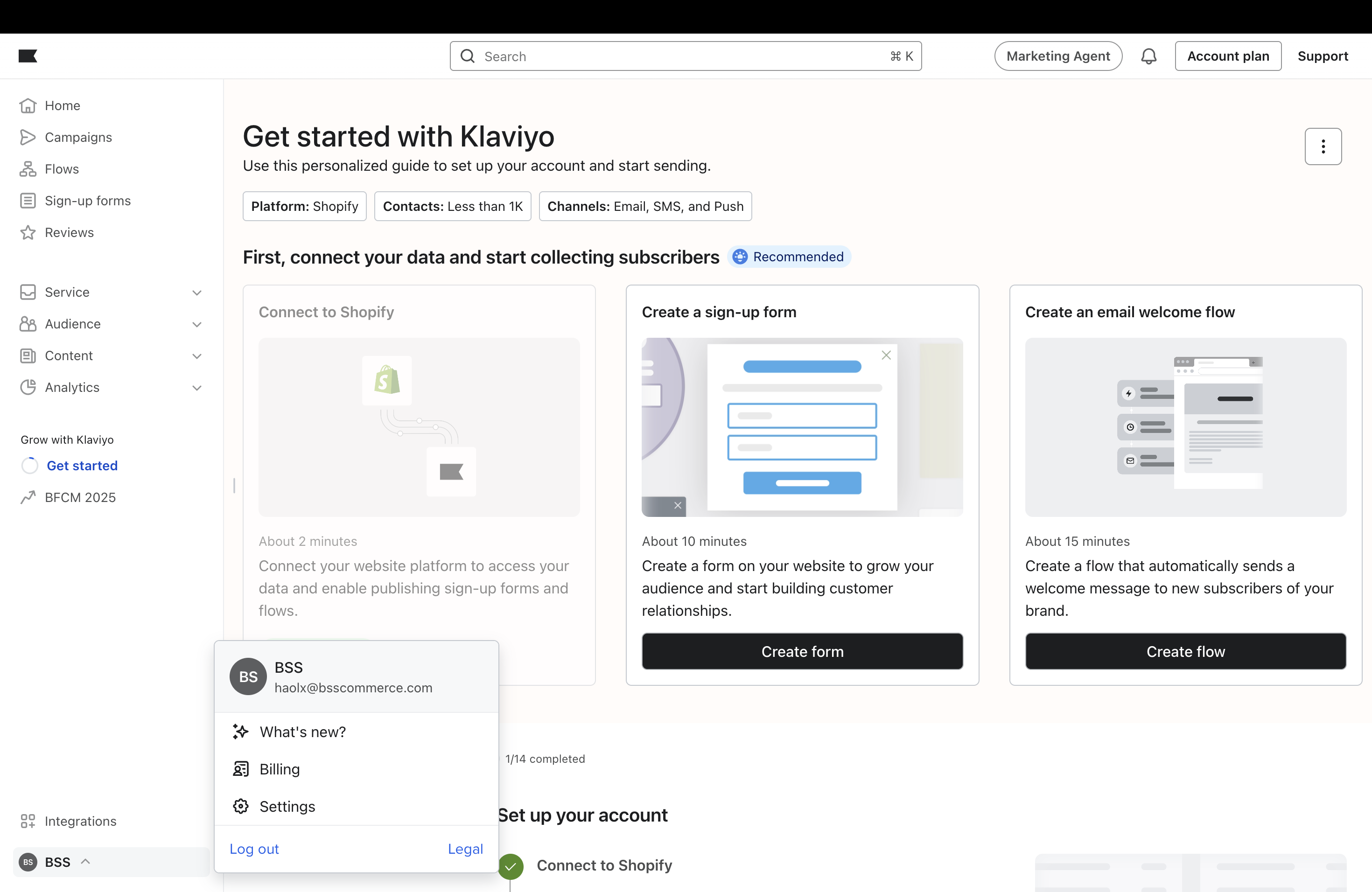
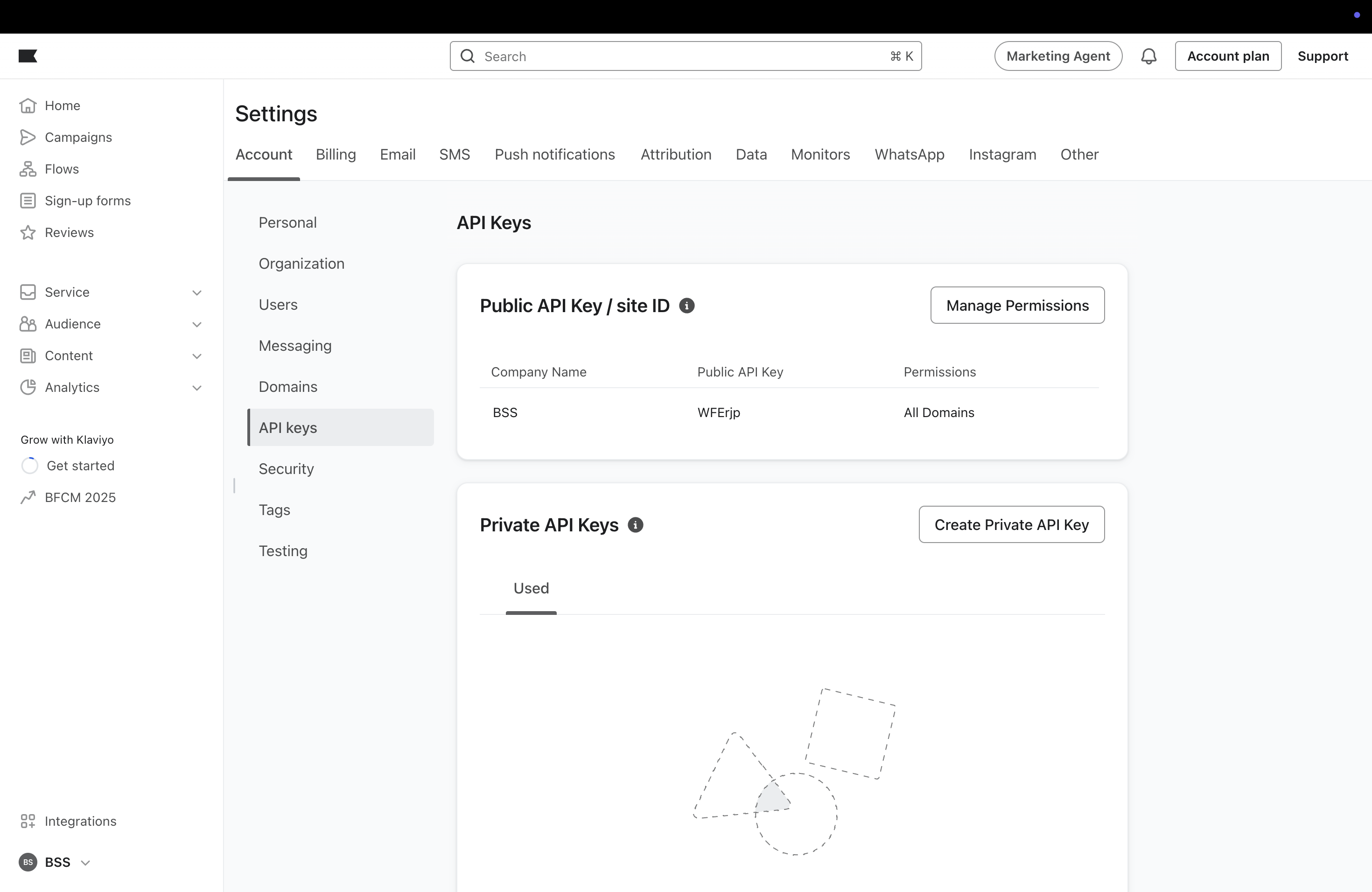
From your Klaviyo Home page, click on your account's name section to navigate to **Settings > API keys**
Click on **Create Private API Key**
{% @arcade/embed url="" flowId="1bFzgdkDkKncZb9LGexl" fullWidth="false" %}
**Save** the key for later use
### **2. Enable the integration with SimiCart**
Go to your SimiCart app in Shopify Admin and navigate to the **Features** tab. Then, find **Klaviyo Email Subscription** and click on **Configure**.
After that, **paste in the API key** and **check the connection**. Once successful, switch to **Enable** the integration, then **Save**.
{% @arcade/embed url="" flowId="FW1DjwiFdIiQSx9IK5La" %}
Congratulations! You have successfully established a connection between Klaviyo and SimiCart.
### 3. Add Klaviyo list to mobile app users' emails
In the Klaviyo Email Subscription configuration screen, click on Lists and **tick the Klaviyo lists** you want to store mobile app users' emails once they subscribe. Once done, **Save** the changes.
### 4. Set how the email subscription pop-up looks (optional)
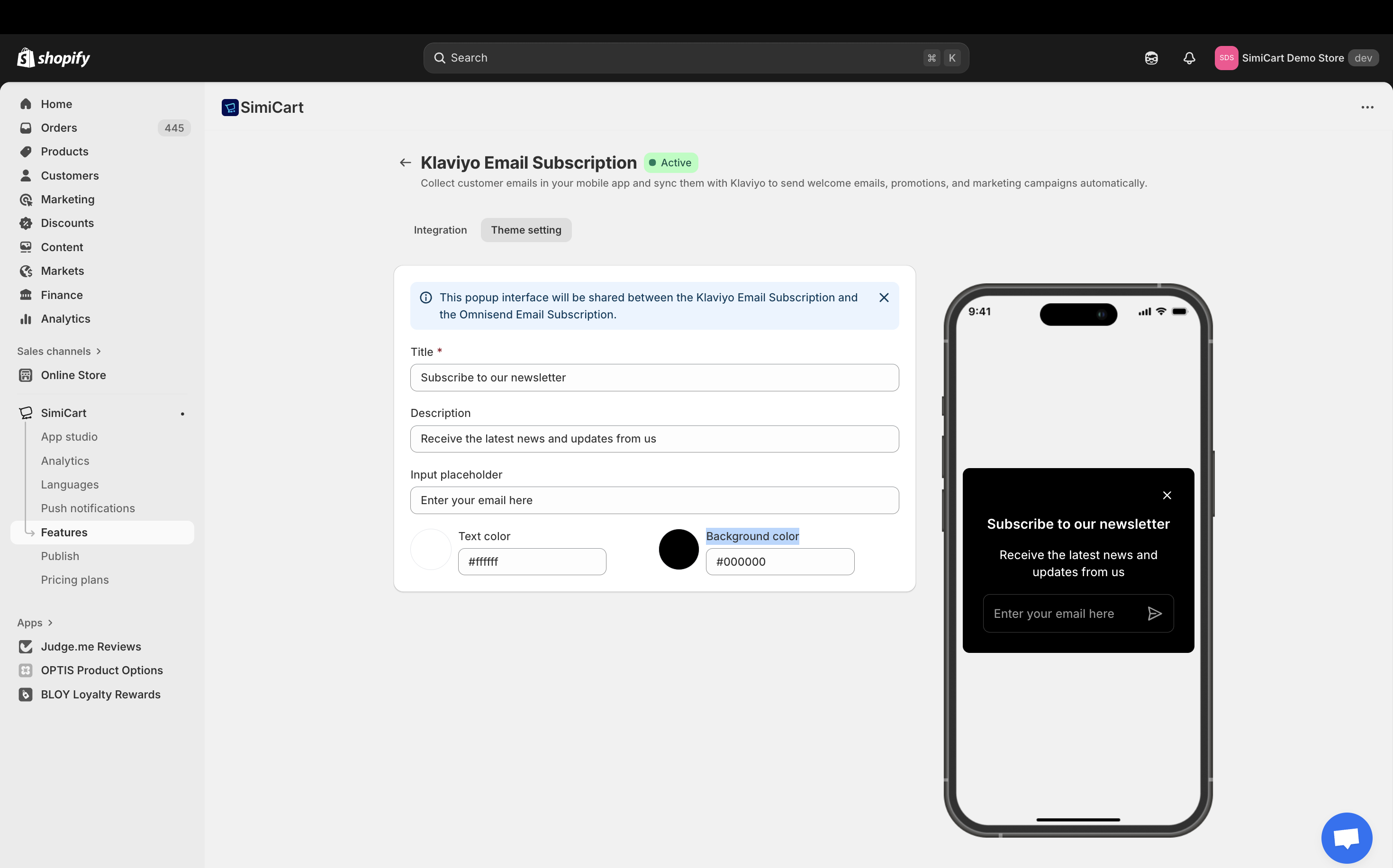
In the Klaviyo Email Subscription configuration screen, switch to **Theme setting** tab. Set the Title, Description, Input placeholder, Text color, and Background color for the pop-up. Once done, **Save** the changes.
🎉 **Congratulations!** You have finished setting up the Klaviyo Email Subscription feature.
***
.png?alt=media)
.png?alt=media)