> For the complete documentation index, see [llms.txt](https://docs.simicart.com/llms.txt). Markdown versions of documentation pages are available by appending `.md` to page URLs; this page is available as [Markdown](https://docs.simicart.com/features/gaining-new-users/smart-app-banner.md).
# Smart App Banner
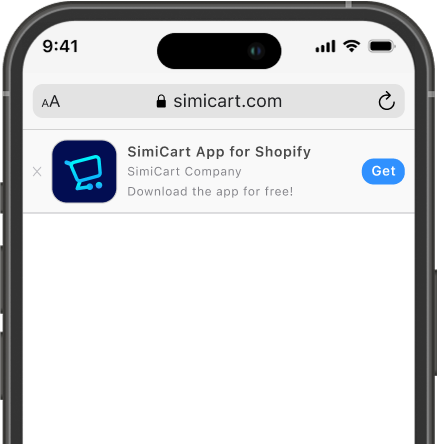
Display a small banner on top of the mobile website screen to inform and drive users to install your mobile app.
## 🎯 Why use Smart App Banner
A smart app banner is a lightweight promotional banner that appears at the top of your mobile website. It encourages visitors to download your mobile app by showing key information like your company name, app description, and a direct download button.
With SimiCart’s Smart App Banner, you can:
* Promote your iOS and Android apps to mobile visitors.
* Provide a seamless download experience with one-click redirection to app stores.
* Customize the appearance to match your website branding.
***
## ⚙️ How to set up
### **1. Activate the App Embed Block**
Before the banner can appear, you must activate the **app embed block**. To do so, please navigate to your **Shopify Theme Editor > App embeds**, enable **Smart App Banner** from SimiCart and click **Save.**
### **2. Enable feature**
After activation, navigate to **Features > Smart App Banner**, then toggle the **Enable** switch to turn on the Smart App Banner.
Note: The toggle is only available when your app is published on the **Google Play Store** and/or the **Apple App Store**.
### **3. Customize**
#### 📑 **Contents**
Fill in the following details to customize the contents of your banner:
| Field | Description |
| ----------------------- | ------------------------------------------------------------------------------------- |
| **Company name** | Enter the name of your company or brand to display in the banner. |
| **Description** | Provide a short, compelling description of your mobile app. |
| **Call-to-action text** | Customize the call-to-action (e.g., “Get,” “Install,” “Download”). |
| **App listing URL** | Add the direct URLs to your app on the **Google Play Store** and **Apple App Store**. |
#### 🎨 Design Customization
You can also adjust the colors of the banner elements to match your branding:
| Element | Description |
| ------------------------------------ | ---------------------------------------------------------- |
| **Banner background** | Customize the overall background color of the banner. |
| **Banner title** | Set the color of the company name. |
| **Banner text** | Change the color of the description and company name text. |
| **Call-to-action button background** | Choose the background color for the action button. |
| **Call-to-action text** | Set the color of the text inside the button. |
***
## 📱 Preview
A live preview of your Smart App Banner appears on the right side of the configuration screen. This allows you to see how your banner will look on mobile before going live.
***
## 💡 Tips
* Ensure your app is live on at least one app store before enabling the banner.
* Keep the **description** short and clear to improve conversion.
* Match colors with your website theme for a seamless user experience.
***
For further assistance, please contact SimiCart support team via or our live chat.
.png?alt=media)
.png?alt=media)
.png?alt=media)