> For the complete documentation index, see [llms.txt](https://docs.simicart.com/llms.txt). Markdown versions of documentation pages are available by appending `.md` to page URLs; this page is available as [Markdown](https://docs.simicart.com/features/gaining-new-users/app-download-section.md).
# App Download Section
Encourage more installs by promoting your mobile app directly on your Shopify storefront
## 🎯 Why use App Download Section
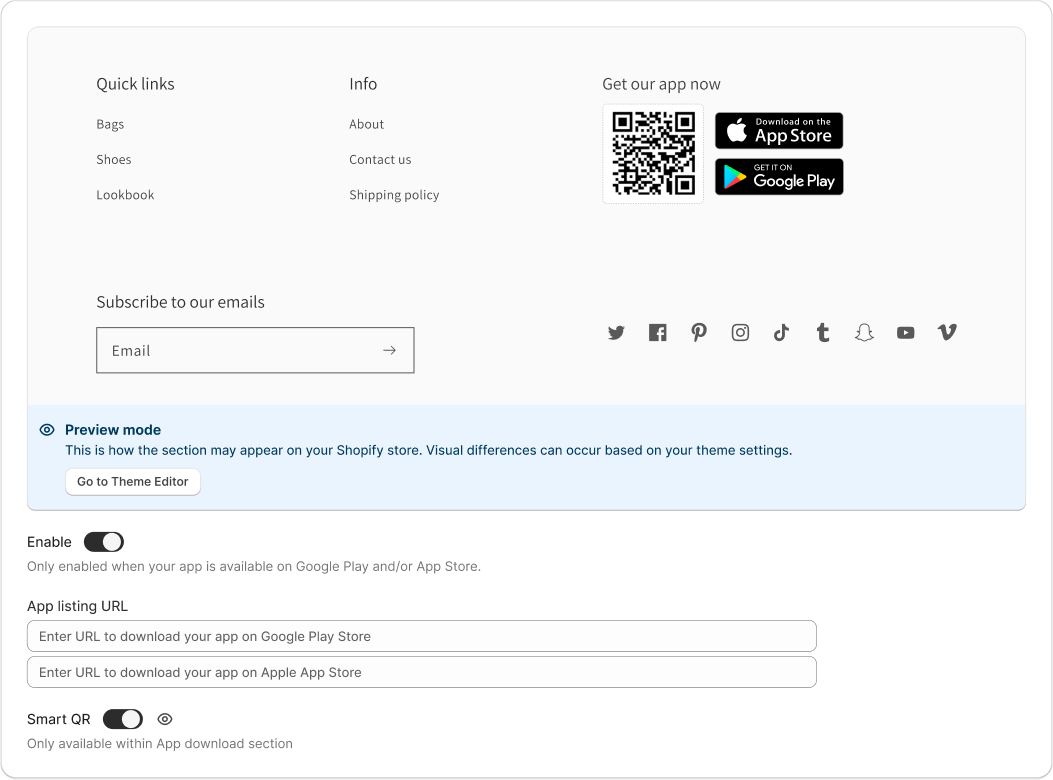
The **App Download Section** lets you add a professional-looking area to your Shopify store pages where visitors can quickly download your mobile app. It includes:
* **App Store and Google Play download buttons**
* A **QR code** for mobile scanning
This section is ideal for placing in your store’s **footer** and **homepage** — anywhere your customers are already engaged and more likely to install your app.
***
## ⚙️ How to set up
### 1. Add section to your theme
* Go to **Shopify Theme Editor**
* Add the **SimiCart App Download Section** to your desired location (e.g., footer)
* Save your changes.
### 2. Enable feature
* Go to the configuration page of App download section on SimiCart.
* Toggle the **Enable** switch to turn on the section
Note: This option becomes active only if your app is available on the **App Store** or **Google Play Store**
### **3. Configure**
Enter your app store links and choose whether to display a Smart QR code for easy downloads.
| Field | What to Do |
| -------------------- | ------------------------------------------------------------------------------------------------------------------ |
| **App listing URLs** | Paste your app store links (Google Play and/or Apple App Store) into the fields |
| **Smart QR** | Toggle this on to show a QR code — customers can scan it on desktop to instantly download your app on their phones |
> 💡 **Tip:** QR codes are perfect for capturing mobile installs from desktop visitors.
***
## 📱 Preview
You’ll see a live preview of how the section will appear on your storefront.\
Click **“Go to Theme Editor”** to adjust layout or test visibility on different devices.
***
## 💡 Tips
* **Place the section** in high-traffic areas like the footer, homepage, or thank-you page.
* **Use strong text** like “Get our app now” or “Shop easier on our mobile app.”
* **Enable Smart QR** to make it frictionless for desktop users to get your app.
***
For further assistance, please contact SimiCart support team via or our live chat. We’re happy to help you grow your app user base!