Homepage
The homepage is the first screen users see after splash screen, serving as the central hub where you showcase featured products, collections, promotions, and other key content to guide and inspire
We offer 9 different section formats to help you create an impressive homepage that highlights your storeβs best deals & products.
Banner
A large image to grab attention and promote something important, like a sale, a featured collection, or a new product. It can link to a product, a collection, or a URL.

Banner slider
Display a series of scrollable images, each of which can link to a product, collection, or a URL β perfect for highlighting promotions, new arrivals, or key categories.

Custom grid
A layout of multiple static images or content blocks arranged in a grid format. Useful for showcasing collections, categories, or promotions in a structured view.

Custom slider
A horizontally scrollable set of custom banners/images. Each slide can link to a product, collection, or URL. Ideal for promotions or storytelling.

Product slider
A horizontally scrollable section showing products. Shoppers can swipe through items β perfect for new arrivals or seasonal picks.

Product grid
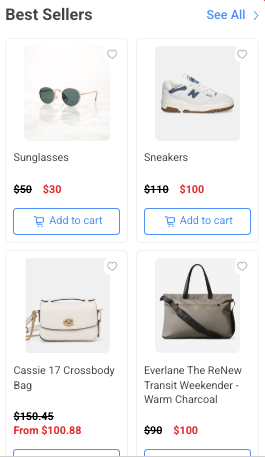
Displays a fixed set of products in a grid format. Best for highlighting featured products or bestsellers.

Video
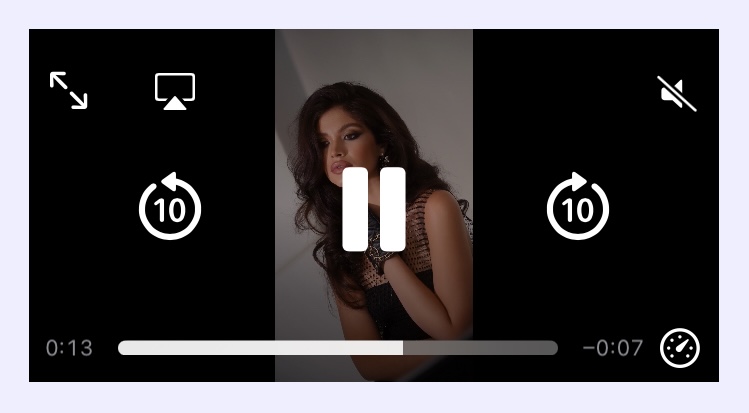
Display a short video directly on your app's homepage. Useful for branding, tutorials, or product showcases.

Countdown timer
A timer block that counts down to a specific date/time. Great for flash sales or event-based urgency (e.g. βSale ends in 02:15:47β).
Rich text editor
Rich text editor lets you add rich text content, links, and images in a free-form layout β ideal for announcements or store policies.

How to edit the Homepage
A new draft always comes with a preset of sections with different section formats. The content and position of the sections associate with the theme. You may choose to:
Add a new section
Edit a section
Rearrange the sections up or down
Hide a section
Remove a section
Add a new section
To add a new section, simply navigate to the bottom of the section list and click Add section. Depending on your SimiCart plan, you can create up to 20 (Basic), 30 (Pro), or 50 (Premium) sections.
With each section, you can choose one of the nine section formats listed above to best showcase your brand to the end users.

Edit a section
Banner

First, click on a banner. The configuration option shows on the right side of the screen, where you can:
Input a title for the banner and Tick to display the banner's title in the app

Upload a PNG image with a suitable size/ratio

Add a link to direct users upon clicking on the banner.

You could take users to
Collection listing page, where you typically list all the collections
Product page, which you must assign a product

Product listing page, where all products within a collection you choose are listed

Insert a web URL

Or choose to have no links to simply display the media
Banner slider

After adding, you can configure the banner slider as follows:
Input a title for the banner slider and Tick to display the banner's title in the app

After that, toggle the Banner slider where you have the options to configure the individual Banner image title. Click on one to set it up.

Input Title for management purposes, and upload an image for the banner image title

Add a link to direct users upon clicking on the banner slider

You could take users to
Collection listing page, where you typically list all the collections
Product page, which you must assign a product

Product listing page, where all products within a collection you choose are listed

Insert a web URL

Or choose to have no links to simply display the media
Click on Add item to create additional banner image title

Custom grid

After adding, you can configure the custom grid as follows:
Input a title for the custom grid and Tick to display the banner's title in the app

After that, toggle the Custom grid where you have the options to configure the individual Grid image title. Click on one to set it up.

Input Title, Tick to display the title in the app, and Add image for the grid image

Add a link to direct users upon clicking on the banner

You could take users to
Collection listing page, where you typically list all the collections
Product page, which you must assign a product

Product listing page, where all products within a collection you choose are listed

Insert a web URL

Or choose to have no links to simply display the media
Click on Add item to create an additional grid image title

Custom slider

After adding, you can configure the custom slider as follows:
Input Title for the Custom slider, Tick to display the title in the app, and choose the number of items displayed within the screen's horizontal space (you can choose up to 5). The more you display, the smaller the image looks.

After that, toggle the Custom slider where you have the options to configure the individual Slide image title. Click on one to set it up.

Input Title for the Slide image title, Tick to display the title in the app, and Upload image

Add a link to direct users upon clicking on the banner

You could take users to
Collection listing page, where you typically list all the collections
Product page, which you must assign a product

Product listing page, where all products within a collection you choose are listed

Insert a web URL

Or choose to have no links to simply display the media
Click on Add item to create an additional slide image title

Product slider

After adding, you can configure the Product slider as follows:
Input Title for the product slider and Tick to display the title in the app

Add a link to direct users upon clicking on the See All link

You could take users to
Collection listing page, where you typically list all the collections
Product listing page, where all products within a collection you choose are listed

Insert a web URL

Or choose to have no links, and the See All link won't appear in the app
Next, Select the list of products to be listed. You can list products that either:
Come from a specific collection

Or, have titles share a text in common

Or, have vendors' names share a text in common

Finally, you could choose how many products to display in the slider (up to 8), as well as whether to let users quickly add them to cart

Product grid

After adding, you can configure the Product grid as follows:
Input Title for the product grid and Tick to display the title in the app

Add a link to direct users upon clicking on the See All link

You could take users to
Collection listing page, where you typically list all the collections
Product listing page, where all products within a collection you choose are listed

Insert a web URL

Or choose to have no links, and the See All link won't appear in the app
Next, Select the list of products to be listed. You can list products that either:
Come from a specific collection

Or, have titles share a text in common

Or, have vendors' names share a text in common

Finally, you could choose how many products to display in the slider (up to 8), as well as whether to let users quickly add them to cart

Video

After adding, you can configure Video as follows:
Input Title for the video and Tick to display the title in the app

Upload a video from your computer

Countdown timer

After adding, you can configure Countdown timer as follows:
Input Title for the Countdown timer and Tick to display the title in the app. Then, set the End date & time

Next, you can customize the appearance by adjusting the height of the timer, as well as the color of the background, title, and the timer

Rich text editor

After adding, you can edit Text editor as follows:
Input Title and Tick to display it in the app

Fill in the contents you want to display to your users. You can choose from headings, text format options, quotes, bulleted and numbered list, embedding links, or images

Finally, set the appropriate height needed to display your content

Rearrange a section up or down
To rearrange a section, hover over one. Click and hold the mouse to drag it up or down, depending on the position you wish to place it.

Hide a section
To hide a section from appearing to end users in the app, hover over a section and click on the Eye icon

To unhide a section, click on the Eye icon again

Remove a section
To remove a section, hover over a section and click on the Trash bin icon

A pop-up appears to confirm. Click Delete

Save & discard changes in a section
Click Save to update or Discard to revert changes

Last updated